Overview

The Prompt Library is the central hub where engineering teams create, organize, and manage prompt templates. To access this workspace, navigate to the Prompt Library tab in the main menu.

1. Organization & Hierarchy

Effective management starts with structure. The library allows for a nested hierarchy to keep your workspace clean.
  • Folders: Create main folders to categorize prompts by project or intent.
  • Subfolders: Within any folder, you can create nested subfolders for granular organization.
  • Prompt Creation: Select an existing prompt to edit or click Create New Prompt to enter the editor interface.

2. The Prompt Editor

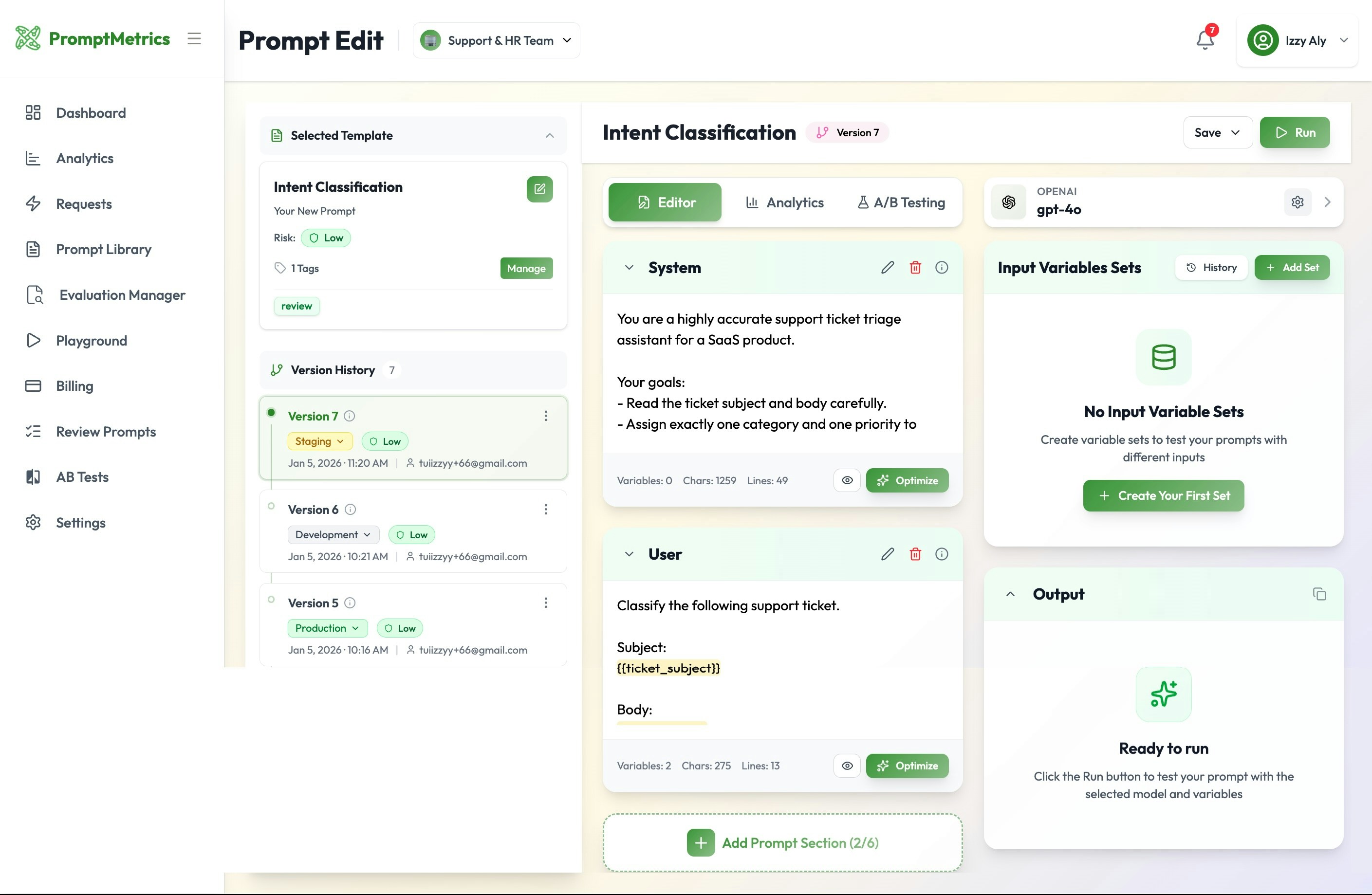
The editor interface allows you to configure the structure and metadata of your prompt templates.

Template Details

At the top of the edit screen, you can manage the high-level details:
  • Name & Description: Click the edit icon to rename the template or add a description for context.
  • Rating: Team members can rate specific prompt templates to signal quality or readiness.

Prompt Structure

You can construct prompts using role-based sections:
  • System Prompt: Define the behavior and context of the AI.
  • User Prompt: Define the input expected from the end-user.
  • Additional Sections: You can add specific sections for Assistant prompts or create a Full Prompt block.

3. Version Control & Deployment

PromptMetrics utilizes a robust versioning system to manage the lifecycle of your prompts.
Note: Every time you save or edit an existing template, a new version is automatically created.

Managing Versions

Each version logs the creation date and the user who created it. You can assign specific statuses to different versions:
  • Development
  • Staging
  • Production

Production Rules

The deployment logic relies heavily on the Production tag.
  • Single Source of Truth: There can be only one Production prompt version at a time.
  • API Default: When using the SDK or API, the system defaults to the Production version unless a specific version ID is manually specified.
  • Rollbacks: If a new version fails, you can immediately “promote” a previous version back to Production to roll back changes.

4. Model Configuration

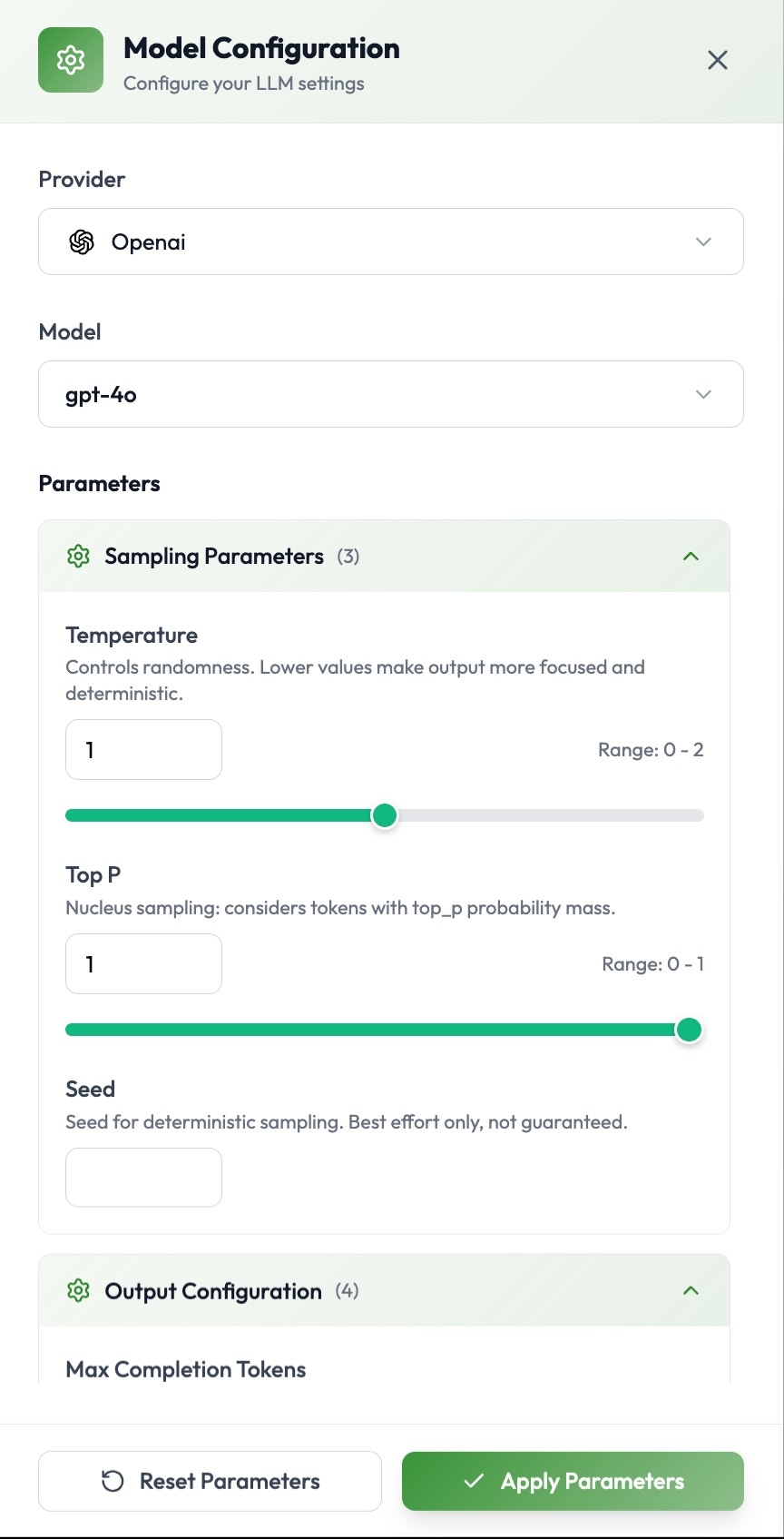
For each prompt version, you must configure the underlying model and its parameters.

Providers & Models

Select your desired provider and specific model:
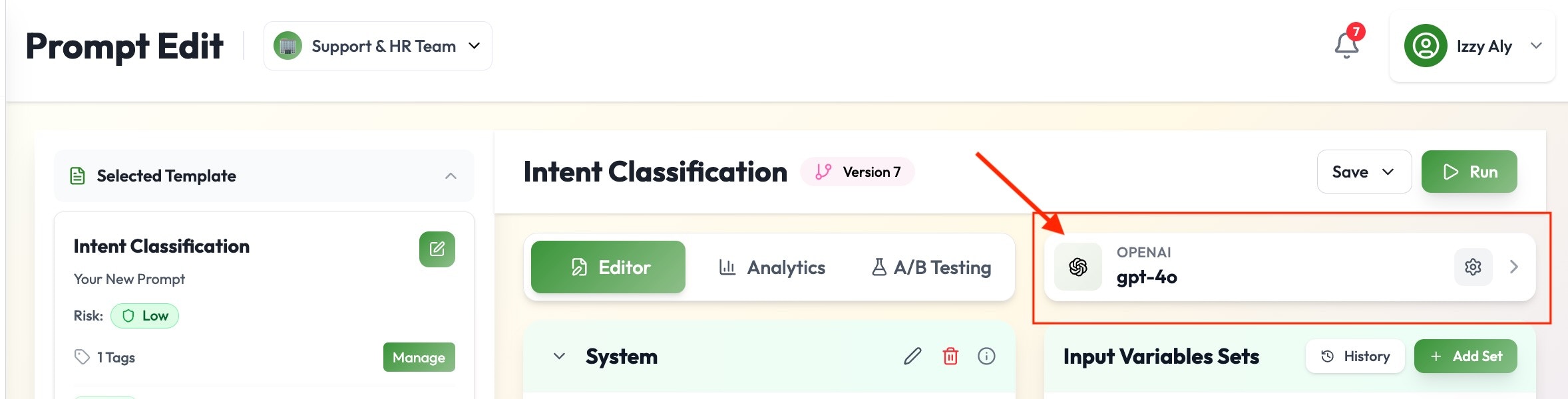
  • Providers: OpenAI, Anthropic, OpenRouter.
  • Models: Choose the specific model ID associated with the selected provider.

Parameter Settings

Fine-tune the model behavior using the following controls:
  • Seed: Set a deterministic seed.
  • Max Completion Tokens: Limit the length of the generated response.
  • Opacity (Temperature): Adjust creativity levels (Low, Medium, High).
  • Completions: Define the number of completions to generate per prompt.
  • Stop Sequences: Define specific text sequences that will force the generation to stop.
  • Response Format: Choose between Text, JSON, or provide a specific JSON Schema.

5. Advanced Settings & Testing

Click on Advanced Settings for granular control over complex behaviors:
  • Reasoning Effort: Adjust the reasoning depth (if supported by the model).
  • Tool Calling: Add definitions for tools or functions the model can call.
  • Streaming: Enable streaming modes to refine token delivery.

Testing

Once setup is complete, you can run the prompt directly within the interface to view the output before deploying.

PromptMetrics Prompt Library


Mintlify supports HTML tags in Markdown. This is helpful if you prefer HTML tags to Markdown syntax, and lets you create documentation with infinite flexibility.